Existing Word templates smartly adopted



“Can our existing Word templates be transferred to SmartDocuments?”
Are you dreading the introduction of a template management system? We say: “All beginnings are difficult ... or not!” In most cases, customers don’t start from scratch when it comes to templates, because companies and organizations already have numerous template documents in Microsoft Office Word format. This is why we’re often asked, “Can our existing Word templates be transferred to SmartDocuments, or do we have to create everything from scratch?” The concern is completely understandable, as this not only takes time but also usually ties up valuable personnel resources. But we can reassure you! Our template management system makes it easy to take existing Word templates (DOCX files) and gradually convert them into modern, dynamic SmartDocuments templates. This not only speeds up the introduction but also preserves the familiar structure and design of your previous documents. So you can quickly benefit from the advantages of an intelligent template without having to start from scratch—and your organization can get productive with SmartDocuments faster. In the following Whitepaper, we’d like to give you a brief insight into how importing existing Word templates works and what you need to keep in mind.
Content
- Preparing the Microsoft Office Word template
- Importing the Microsoft Office Word template
Preparation of the Microsoft Office Word template
Before existing Microsoft Office Word templates can be transferred to SmartDocuments, structured preparation is recommended. SmartDocuments works with a clear separation between layout and content. This not only ensures greater clarity but also simplifies later maintenance or updating and reuse of individual components. The first step requires a DOTX file in which the desired style templates (e.g. headings, fonts, body text, table styles, etc.) are centrally defined. Important: this file contains no “content” such as headers or footers, but only format definitions. It thus forms the stylistic basis for all future documents.
In addition, another DOCX file with the desired header and footer will be prepared. This contains content elements that typically appear in every document – such as sender data, contact persons, or contact information and more. Since the header and footer are maintained centrally, a single import is sufficient. Changes – such as e.g. a new address or changed extension – can be applied quickly and uniformly to all linked templates. The actual content Word templates, i.e., the main text without header and footer, are also required as DOCX files. These files serve as the basis for later conversion into a SmartDocuments template.

Files for preparation
- Template: Contains the desired formatting and design specifications
(e.g. fonts, paragraphs, headings). - Header and footer: Contains the central letterhead or footer that can later be reused in multiple templates.
- Content templates: The actual document template without header and footer
(e.g. form letters, notices, contracts, applications, etc.)
Import of the Microsoft Office Word template
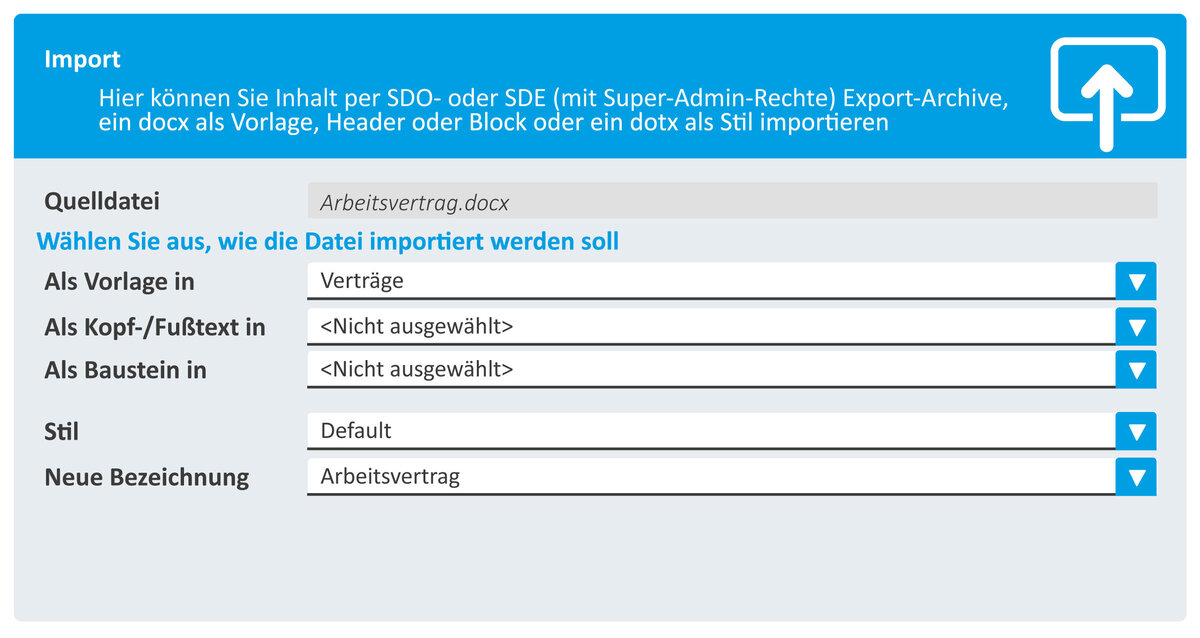
Once the prepared Microsoft Office Word files are available, the next crucial step follows: importing them into SmartDocuments. This process is managed via the user-friendly administration interface SmartControl.
First, the central DOTX file containing the style templates is uploaded. These format definitions are then available to all templates and ensure a consistent appearance for all documents. Next comes the DOCX file with the header and footer text. This is imported as a standalone template element. Since this header text is later centrally linked via the templates, a single import is sufficient—adjustments can be implemented system-wide in no time.

Lastly, we now come to the upload of the "content-related" Microsoft Office Word templates, which have already been prepared without a header and with the desired structure. All imported template and building block documents can be managed, released, and assigned different user rights within SmartControl. In addition, it is also possible to assign the individual templates to specific people, groups, departments, or application areas. The smart import mechanism ensures that existing Microsoft Office Word templates are not lost and serve as a basis for further processing into intelligent and fully or semi-automated templates.

Expansion as a SmartDocuments template
After successfully importing the Microsoft Office Word template, the templates can be prepared in the SmartEditor – the central tool for editing and converting classic documents into interactive, structured SmartDocuments templates.
In the SmartEditor, the template is equipped step by step with the required question elements that template users will later see in the SmartWizard when generating the document.
These include, for example, text fields, date entries, selection lists or checkboxes that can be filled in the SmartWizard. These questions are placed intuitively using drag & drop directly into the embedded Microsoft Office Word document.
In addition, branching logic, mandatory fields, default values or tooltips can be added – individually and as needed for each template.
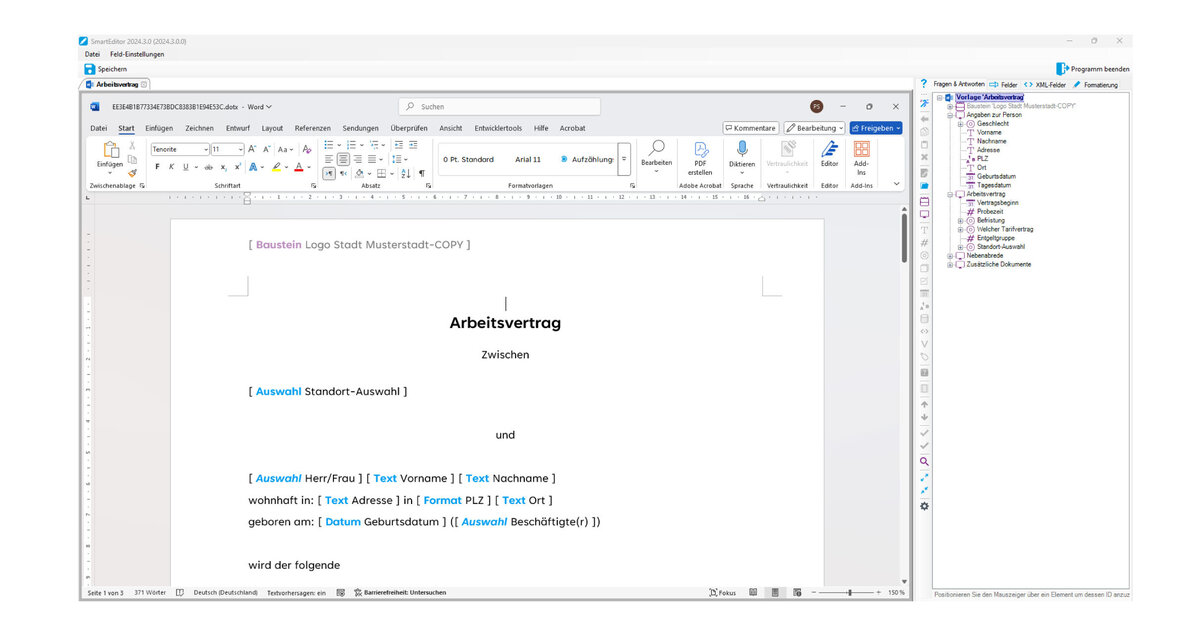
Access to external data sources (e.g. XML or database queries) can already be prepared here, so that fields are automatically populated. A particular advantage of the SmartEditor is the separation of layout and content: A header or footer text defined once can, as described above, be centrally linked to the template via SmartControl. This enables easy maintenance and ensures consistent documents throughout the organization. By structuring the template, a static Microsoft Office Word file becomes a dynamic, intelligent template document – ready for productive everyday use.
Support
Getting started with SmartDocuments is deliberately kept simple – and yet we know from experience: especially in the initial phase, questions may arise when switching from existing Word documents to SmartDocuments templates, or support may be required due to staff shortages.
Therefore, we will of course not leave you alone with the transition.
Our team will support you, if desired, with the analysis of existing Word templates, the technical import, and the expansion into complete SmartDocuments templates.
Whether individual documents need to be revised or entire template packages are to be implemented – we offer tailored services that can be flexibly adapted to your needs.
Conclusion
The transition to SmartDocuments does not have to involve a complete restart of your template landscape. By being able to directly transfer existing Microsoft Office Word templates into SmartDocuments and further develop them there, the transition becomes particularly efficient and resource-saving.
The advantages are clear:
- Faster project start, as there is no need to redevelop each template.
- Reuse of proven content and layouts, including headers and footers.
- Central control of format and design specifications via shared building blocks.
- Future-proof expansion with dynamic content, queries, and automations.
This way, SmartDocuments not only offers a modern, flexible way to create templates – but also bridges to existing document processes. Anyone who has already worked with Microsoft Office Word will quickly find their way around and can specifically develop existing content instead of starting from scratch.