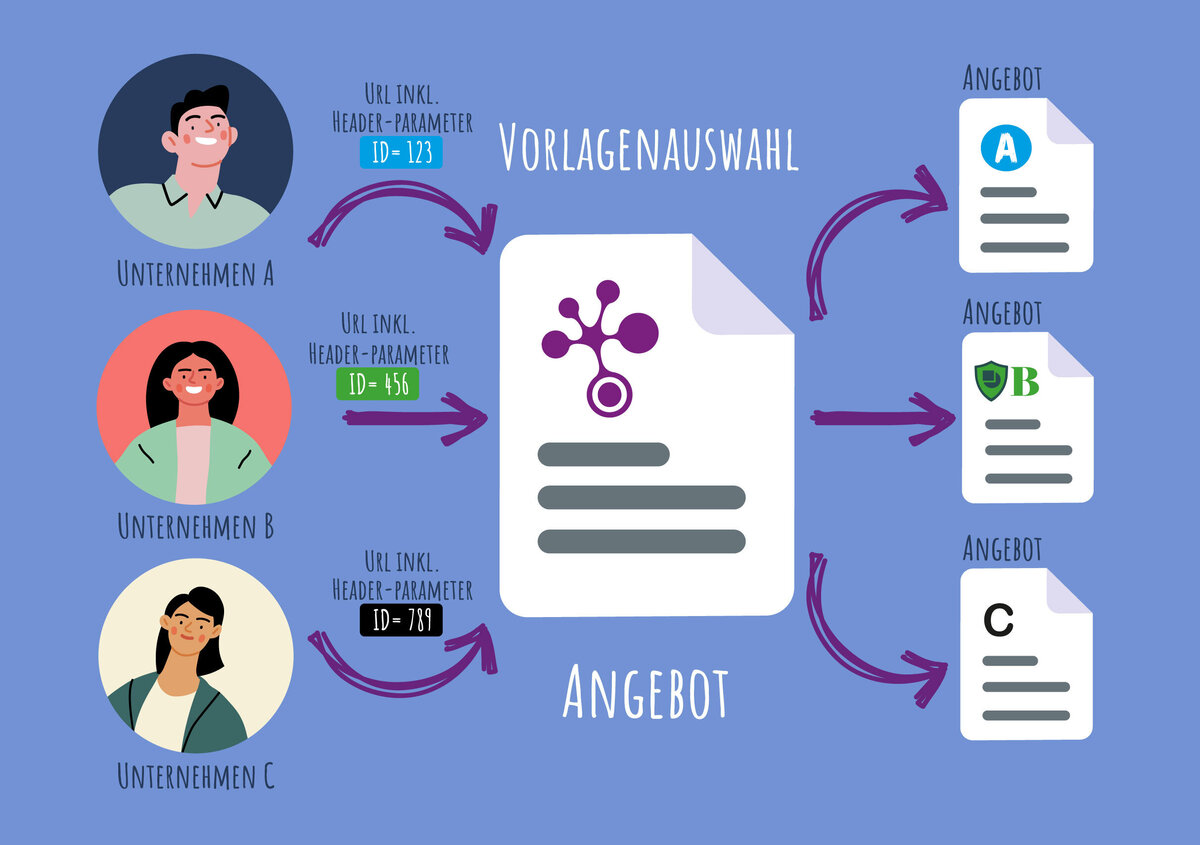
Start templates directly with predefined parameters

Start templates directly with
predefined parameters
The SmartWizard is like a personal assistant for document creation – just digital and always in a good mood. Instead of struggling through complicated templates or manually copying and pasting text, you simply answer a few questions. The wizard automatically generates a finished document from this, perfectly styled.
In the standard configuration, when the SmartWizard starts, a selection window opens first. Here, users must manually select the template, template group, author, or header text, among other things. But what if certain documents need to be started regularly with the same settings – for example, always with the same template, the same letterhead, or for a specific user group?
This is where the parameterized wizard call comes into play. Additional parameters within the URL can automatically prefill these selection fields or even skip them entirely. This allows the SmartWizard to be called up in a targeted manner – for example:
- directly from an employee portal, to jump to a specific form or document with a single click,
- via desktop shortcuts, to open recurring documents immediately,
- or within a DMS or specialist procedure that calls SmartDocuments directly via the URL, passing the correct template.
If all required parameters are specified in the URL, the selection window is skipped and the Wizard launches directly into the template: fast, targeted, and without detours.
And this is how it works!
The SmartWizard can be launched via a URL with parameters. These parameters define which elements (e.g., template, user group, letterhead) should be used when the application is called. A complete example URL might look like this:
https://URL.de/smartdocuments/wizard/Application.jsp?AuthorID=ABC&UserGroupID=DEF&TemplateID=GHI&TemplateGroupID=JKL&HeaderGroupID=MNO&HeaderID=PQR
It is not necessary to use all parameters; only the values actually required must be specified. When users start the SmartWizard, different parameters must be selected depending on the individual permissions. If users, for example, only have access to a template group, the selection of the template group does not appear in the SmartWizard. Consequently, this parameter does not need to be included in the URL. In most cases, therefore, a simple URL like this is sufficient:
https://URL.de/smartdocuments/wizard/Application.jsp?TemplateID=GHI
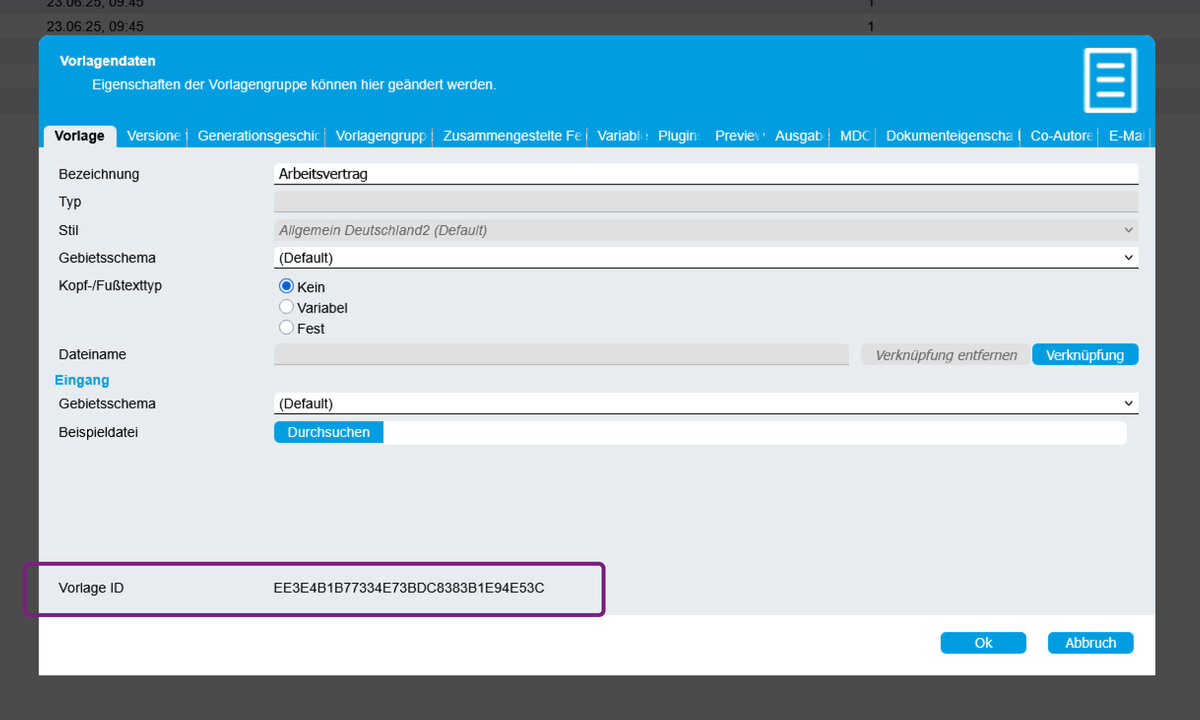
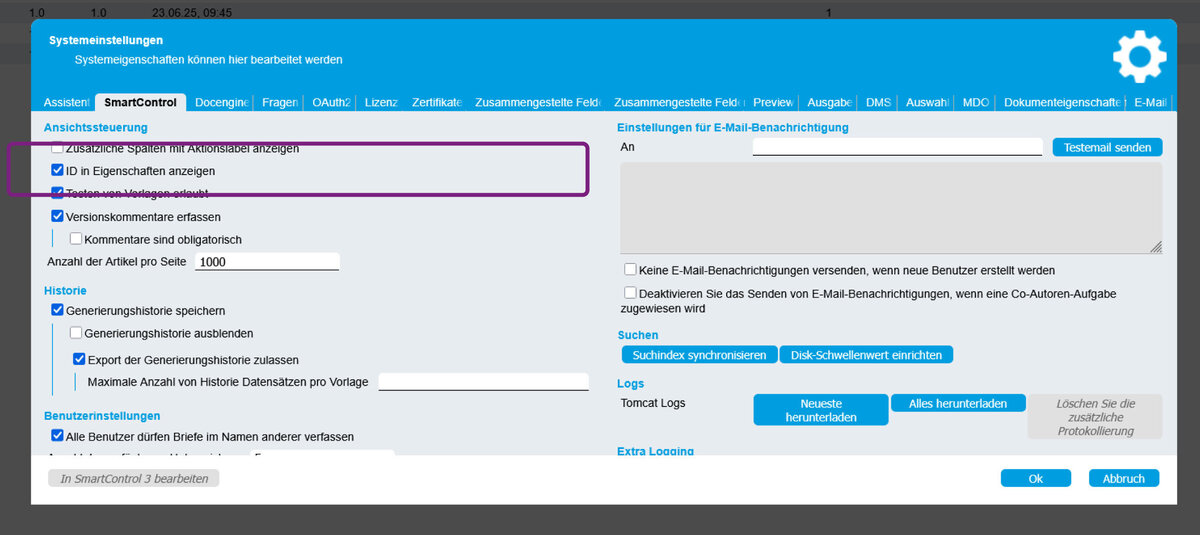
Notes: The respective IDs (e.g. for templates or letterheads) can be found in the properties of the corresponding elements within the SmartControl program section. If parameters are passed, the corresponding selection fields in the Wizard are pre-filled or disabled (no longer editable). This ensures that the desired configuration is used exactly.
Parameters
To start the SmartWizard with the desired settings, various parameters can be passed via the URL. Each parameter corresponds to a specific selection field in the Wizard – such as the template, user group, or the letterhead to be used.
The following overview shows all available parameters and explains their respective functions:
- AuthorID: Used when a document is to be created on behalf of another person (this requires a special right within SmartControl).
- UserGroupID: Required if a user is assigned to multiple user groups.
- TemplateID: Defines the template to be used.
- TemplateGroupID: Used when the same template exists in multiple template groups (e.g. locations) or multiple template groups are available.
- HeaderGroupID: Determines the letterhead group to be used (for variable letterheads).
Additional options
- „FixedValues=“: If this parameter is used, the selection fields are greyed out and cannot be adjusted. Additionally, the SmartWizard starts directly without a selection dialog if all required parameters are set.
- locale: Determines the language in which the SmartWizard should be used (e.g. “locale=de” for German)
Usage examples
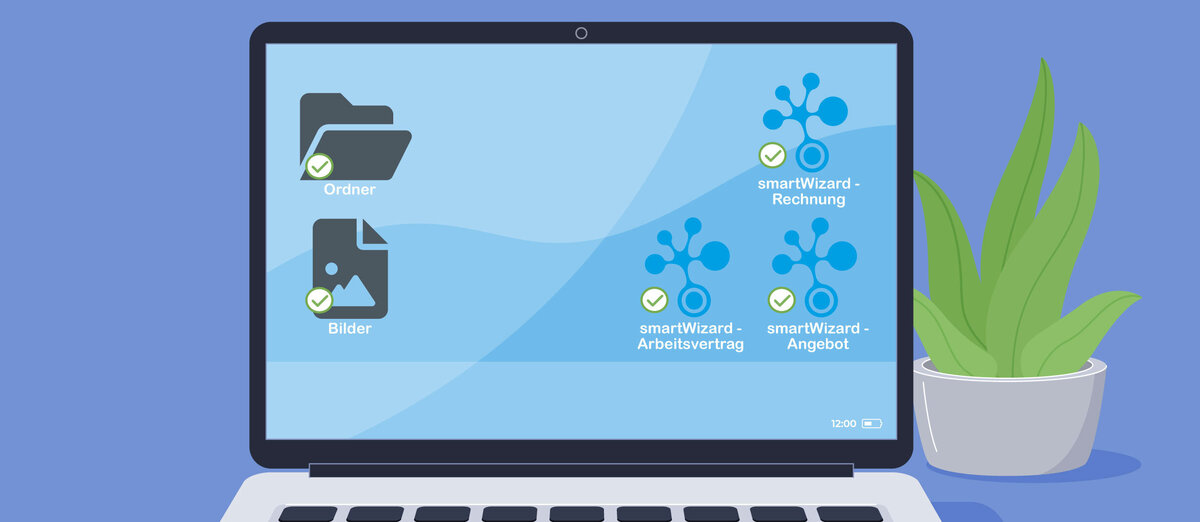
1. Desktop / folder shortcut
A particularly simple and effective way to use the parameterised call is to create multiple direct shortcuts – for example on the desktop or in a shared folder.
Frequently used templates, such as standard letters, notices or contract documents, can be opened with a single click. The URL parameters stored in the link start the SmartWizard directly in the appropriate template without displaying additional selection windows. This saves time in daily work and ensures a clear structure, especially when working regularly with different document types.
2. Link integration in the employee portal
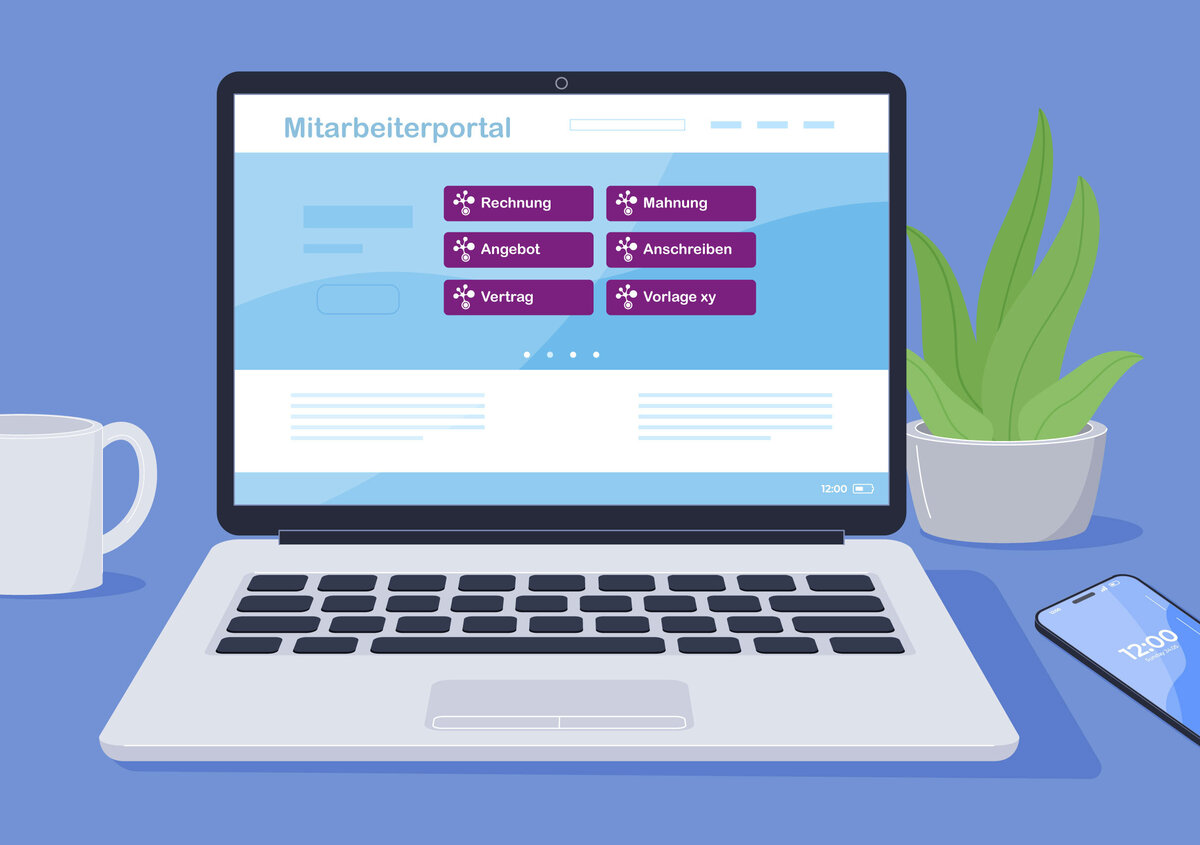
Another practical option is to store the parameterized Wizard links directly in an employee or Service portal.
This allows users to open SmartDocuments templates directly from their familiar work environment – for example, from the intranet, an HR portal or an internal knowledge platform.
With a single click on the corresponding link, the SmartWizard starts immediately in the correct template without requiring any manual selection beforehand. This not only ensures intuitive operation but also reduces queries and incorrect usage, as each employee is guided directly to the documents relevant to them.
Note: Storing the links in the employee portal only opens the SmartWizard to the matching template. Alternatively, it would also be possible to integrate SmartDocuments directly into the employee portal via an interface, allowing portal data to be transferred into the templates.
3. Templates with variable header texts
When multiple organizational units – such as departments, branches, or subsidiaries – use the same content but require their own header/footer sections, the parameterized call demonstrates its full potential.
Each unit receives its own link to the SmartWizard, where the desired header text parameters (e.g. HeaderGroup and Header) are stored.
When opened, the wizard starts directly with the appropriate header text, without the user being able to make any selections – and without access to the header texts of other units. This keeps the template centralized and maintained in a single location, while the appearance varies automatically for each organizational unit. This reduces maintenance efforts (one template instead of many duplicates), increases design consistency, and ensures clear permission boundaries: each unit uses “its” header text, but never that of another.
Note: Alternatively, access for variable headers can also be controlled via the internal SmartDocuments permission system, ensuring that only the user's own header is used. However, since employees may have access to multiple headers via the permission system, uniqueness can be controlled via the link call.